.avif)
TL;DR
You can find LinkedIn profiles using emails through 3 methods:
Google search (with a 60-70% success rate for unique names), Microsoft Outlook integration for synced accounts, and email lookup tools like Reverse Contact for bulk processing. Multi-channel strategies, combining, LinkedIn, email, and phone, deliver 287% higher response rates than single-channel approaches.
Email as an approach channel is not enough?
I get it.
Cold email is great and everything, but the chances of B2B lead generation success accelerate when you combine multiple touchpoints to reach out to potential prospects.
(And you won't have any regrets either!)
So, LinkedIn is a great place to start.
And if I'm being brutally honest, LinkedIn drives 2x higher conversion rates for B2B campaigns compared to other social networks.
You don't need to start all over again to get there - you can use your existing email database to find your prospects on LinkedIn.
And we're gonna tell you how.
Here's everything I'll break down for you:
– Does LinkedIn show email addresses?
– How to find a LinkedIn profile by email address?
– Why YOU SHOULD definitely do it
- LinkedIn Profile Search Limits
- Profile View Visibility on LinkedIn
- Best fix for a LinkedIn Link Preview that isn't working
Gear up, because we're starting!
Does LinkedIn Show Email Address?
Yes.
So, you can look up people's email addresses on their profiles, but only if they've made it public; otherwise, you can't.
By default, LinkedIn users can set their email visibility to "Everyone on LinkedIn", "1st-degree connections", "1st and 2nd-degree connections", or "Only visible to me" - meaning most users keep their email address private on their profile.
Now that the facts are clear, let's see what you can do to find the LinkedIn URLs of your prospects using their emails.
How To Find A LinkedIn Profile By Email Address
There are 3 ways you can look someone up on LinkedIn using their email addresses:
↪️The good old Google search,
↪️Microsoft Outlook for Outlook emails, and
↪️Email lookup tools.
Let's look at each one of them in detail:
1. The Good Old Google Search
This is an easy and trusted method to find the LinkedIn profiles of people on Google.
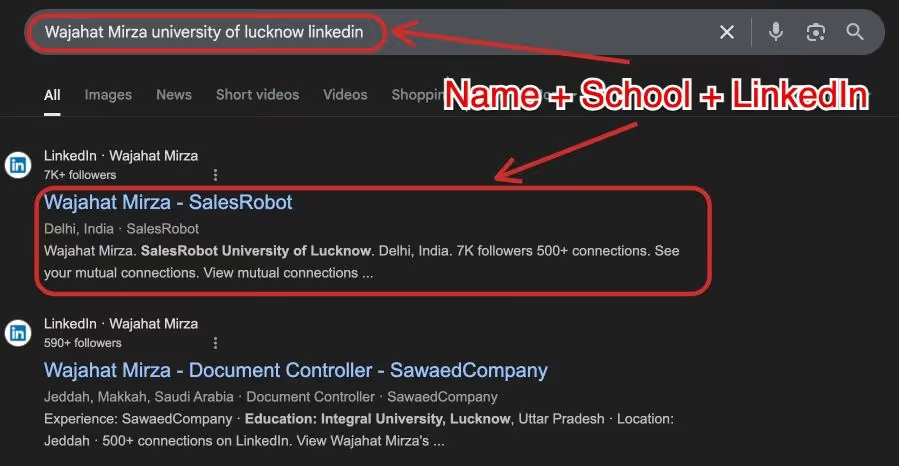
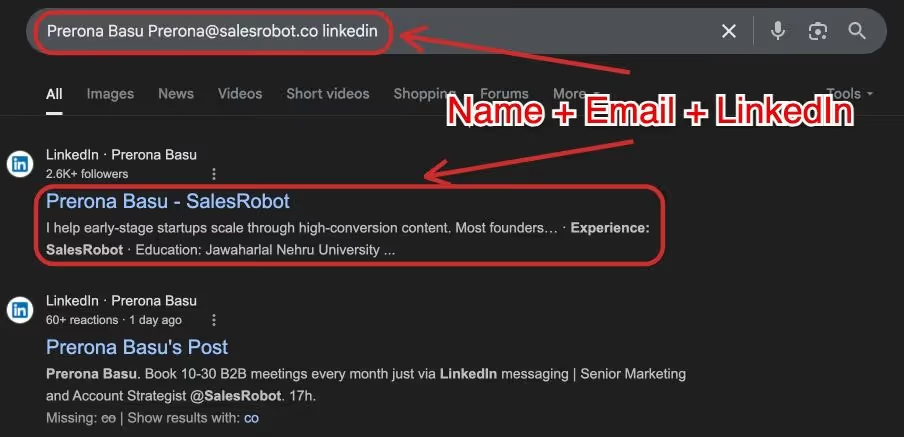
All you have to do is go to Google, type out either one or all of these (whatever you know), and add "LinkedIn" at the end:
- Name + job title
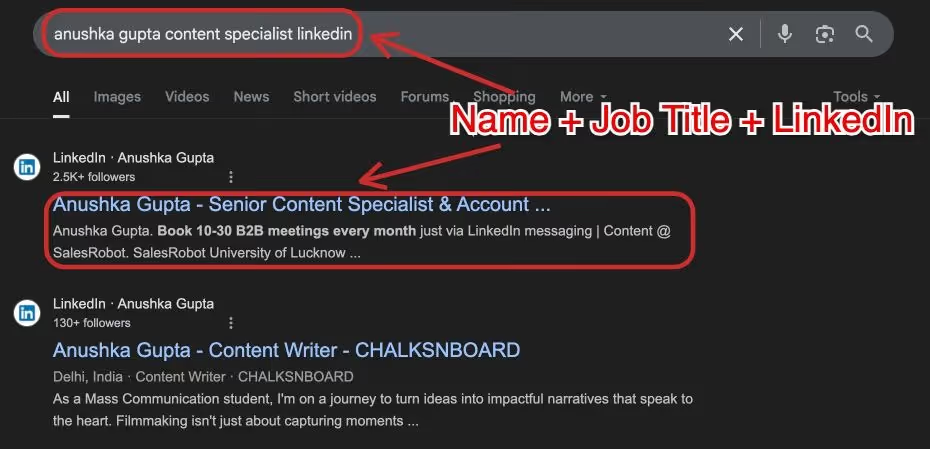
- Name + company
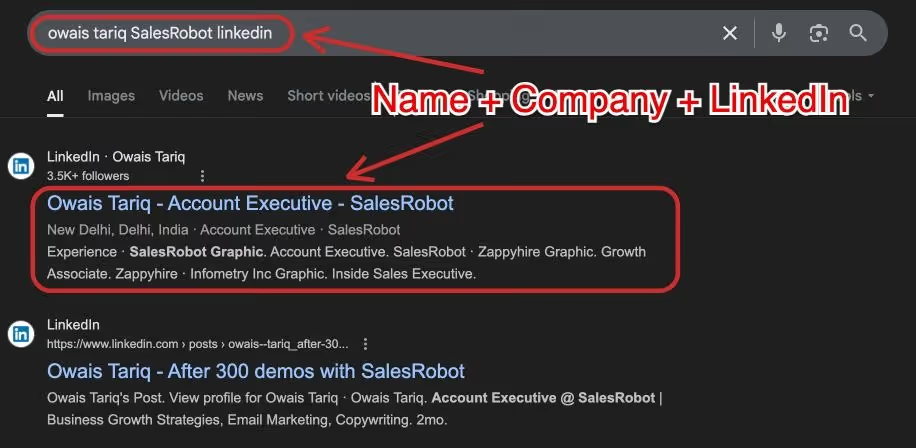
- Name + school/ college
- Name + email
- Name + city
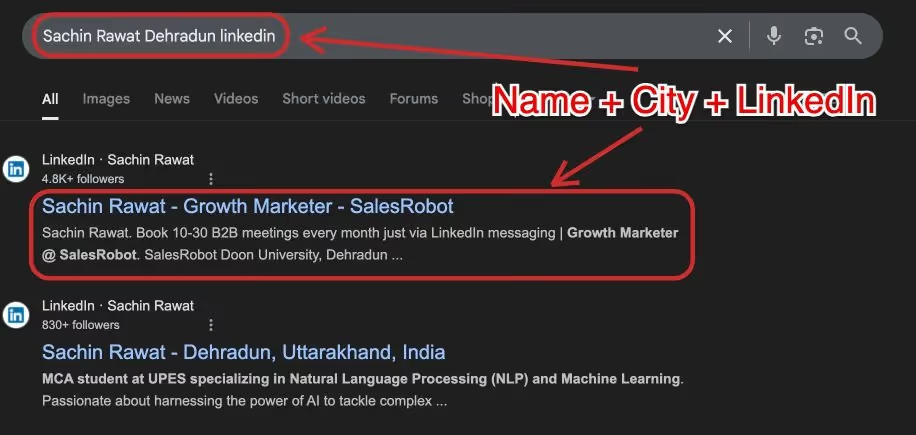
You can recognize them based on their work profile, profile picture, etc., and there you have it.
If they haven't, there's no way to know.
Anyway, one of these is definitely gonna work for you.
Google is really good + efficient at finding LinkedIn profiles this way.
There's a success rate of 30-40% for common names and 60-70% for unique names when you find LinkedIn profiles from email using Google search.
But as you can tell, it's next to impossible to do this in bulk.
2. Microsoft Outlook For Outlook Accounts
Did you know you can find 'profile cards' of people who have synced their LinkedIn account with Outlook?
It's another great way to find LinkedIn profiles within Outlook itself.
What do you need to do?
- Go to Outlook.
- Select "Accept" to connect your LinkedIn account with Outlook.
- Select "Accept" again to connect your Microsoft account with LinkedIn.
- Now you can add emails and see their LinkedIn profile information on their profile card.
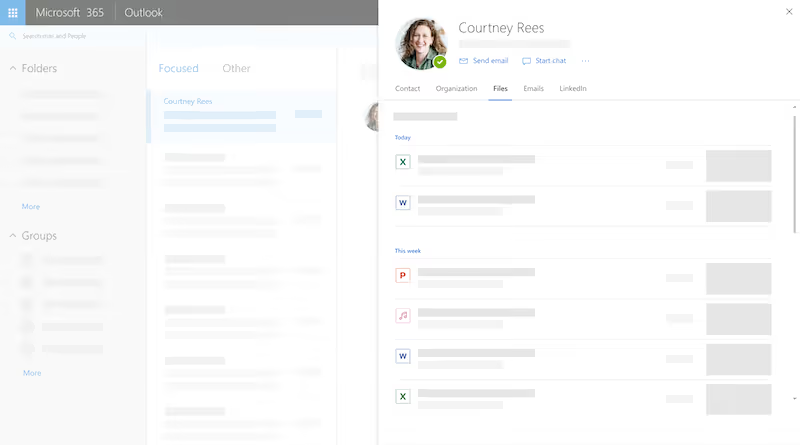
Source: Microsoft 365 Outlook
The profile card shows you information about your prospect, such as profile information, highlights, and connection details. You'll be able to see LinkedIn information in profile cards across different Microsoft 365 applications like OneDrive for Business, SharePoint, and Outlook. This is highly effective (and accurate too) but works only when your + person's profile is synced with their Outlook account.
And as you can see, it comes with T&C too.
The person + you should have an Outlook account.
3. Email Lookup Tools
There are multiple low-code/ no-code tools available that will help you find LinkedIn profiles of your email lists, and they work well for bulk enrichment.
If you have the requirements and resources, then it's the best option for you.
Top email finder tools include Reverse Contact, Skrapp, GetProspect, and Kaspr that really help you with large lists, and you can then download the LinkedIn URL list.
Many of these tools can extract verified emails with up to 95% accuracy rates. Reverse Contact offers 20 free requests with all the features of paid plans, while other premium options start around $29/month.
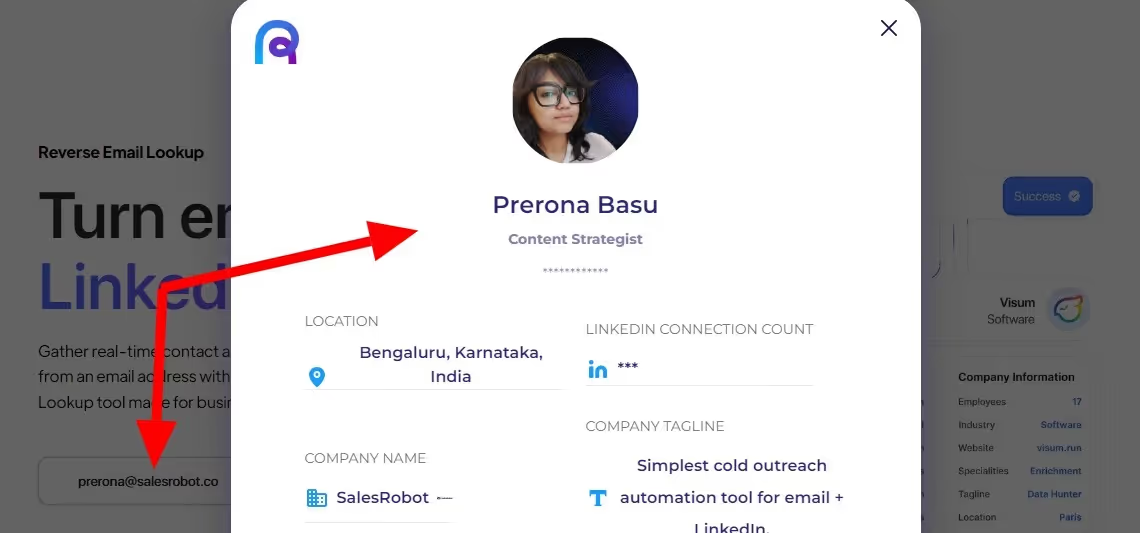
They go through public records and online resources, verify their information (like name, employer, contact info, etc), and then give it to you.
Basically, just with an email API or CSV list, you get a fully enriched data file.
And generally, they provide integrations and APIs so you can connect them with your favorite CRM to import data directly.
4. Bonus Tip: Next Steps With SalesRobot
Now that you have your LinkedIn URL list, your next steps would be to plan your approach strategy step-by-step.
This is where you can automate it.
Why automate it?
If your business goal is to get leads from LinkedIn, and you've already been running email campaigns, or not, you must realize that after a certain point, it is impossible to do it manually.
Even if you manage it somehow initially, a day will come when you'll be exhausted and won't wanna do it anymore.
Until a friend comes over and tells you this:

And then you realise:
LinkedIn lead generation is not a one-step process.
It can take months.
So, to make your life easier, there's SalesRobot.
SalesRobot is a LinkedIn + Email automation tool that lets you reach out to your prospects efficiently.
But why SalesRobot?
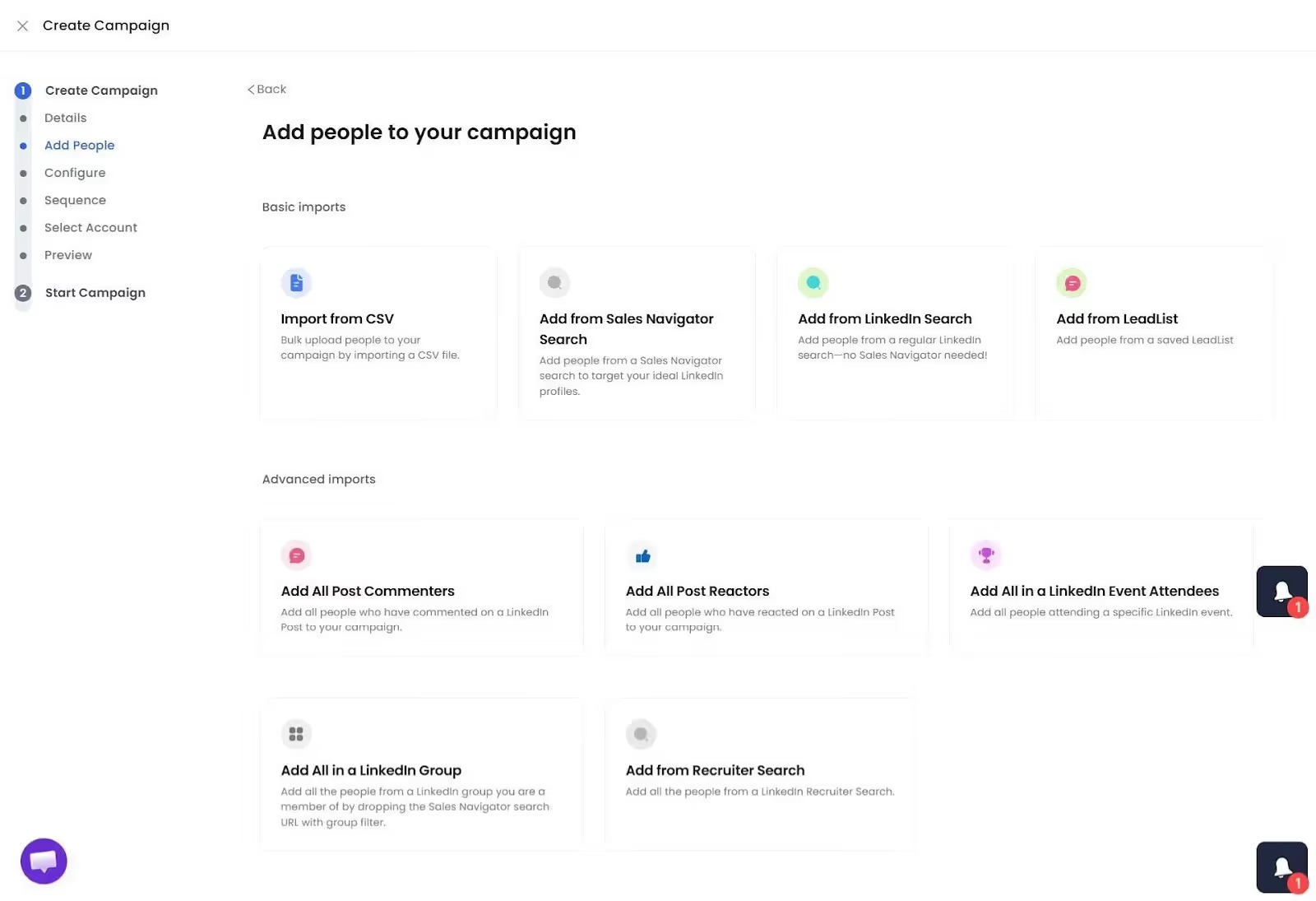
↪️SalesRobot has 9 different options to import prospect lists, including a CSV option, which can be useful to add to the list you just downloaded.
↪️SalesRobot can run LinkedIn + Email campaigns in one sequence, so you know you are reaching out to people more effectively via the same campaign.
↪️SalesRobot is smart enough to detect if people have open profiles; in that case, it'll send free InMails to them, saving you some credits.
↪️You can create fully customizable campaigns and 100% control when, where, and how you engage with your prospects.
↪️You can slowly start by warming up, visiting their profile, commenting, sending actual personalized requests, and so much more.
These are good features of SalesRobot, something a lot of automation tools have out there, so what makes it great?
✅The fact that maybe, just maybe, you won't need to go through all that work of finding profiles by email.
Because what if the emails you have are inaccurate, or just don't exist anymore, or those people don't want to hear from you?
SalesRobot lets you find verified email addresses of your target audience.
SalesRobot has a huge 700M emails database to enrich your LinkedIn prospect lists.
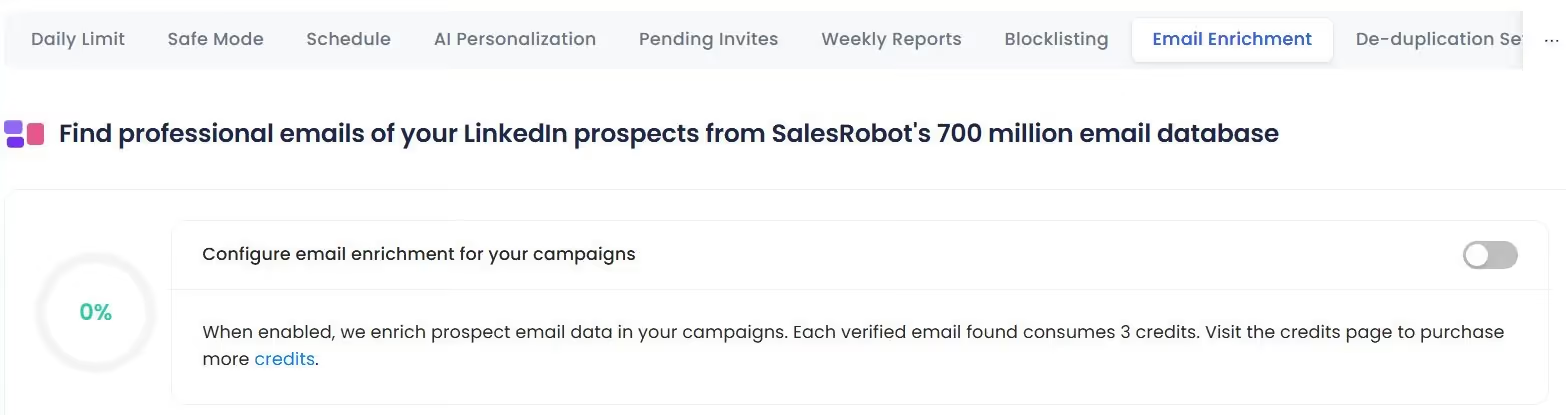
You simply need to add the LinkedIn search URL, and LinkedIn will automatically enrich the profiles with verified email addresses.
This helps you target people who might actually be interested + in need of your services.
✅The fact that you can control your automation - 100%.
- Profile views
- Connection Invites
- Follow-ups
- InMails
- Profile follows
- Likes and comments
- Endorsements
- Messages using groups and events
These make AI's LinkedIn activity human-like.
Safe mode has daily max activity limits to keep your account safe and stay within LinkedIn's profile search limits.
SalesRobot's Safe Mode keeps your account within LinkedIn's activity limits by adjusting automation based on
- Your profile age,
- Your network size and,
- Average daily activity.

✅Smart Reply Detection pauses your sequence the moment a prospect replies, so you never send a follow-up to someone already in a live conversation with you.
✅Additionally, SalesRobot now offers AI-powered voice and video messages.
They send personalized voice notes and video messages at scale.
This is done using AI voice cloning and AI video avatar messages used inside LinkedIn outreach.
According to SalesRobot's internal data, this feature alone drives 40%+ reply rates by making text-heavy inboxes feel personal again.
✅The fact that SalesRobot AI Appointment Setter can automate sales activities by auto-responding to replies, book meetings, and even create follow-up campaigns - so your pipeline keeps moving without you babysitting every conversation.
It's a 5-step simple process:
- You define your ICP
- Build an approach sequence
- Hyper-personalize at scale
- Experienced AI handles responses
- Automated meetings scheduled.
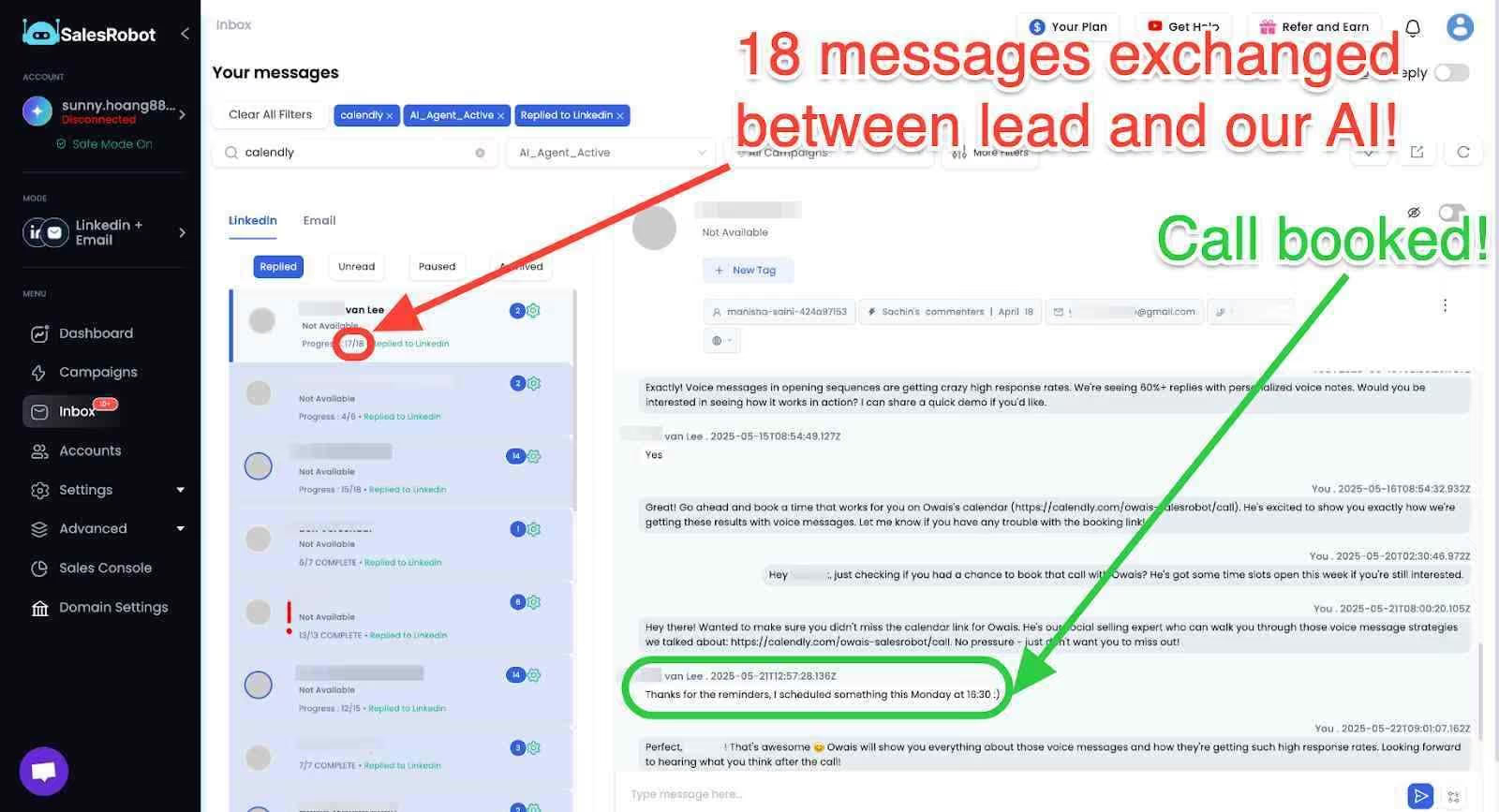
✅The fact that SalesRobot can reach out to your prospects using AI Variables and send them profile-based personalized messages automatically.
And, it's really easy to do. Just pick your preferred template from the message sequences made out of the best sales scripts.
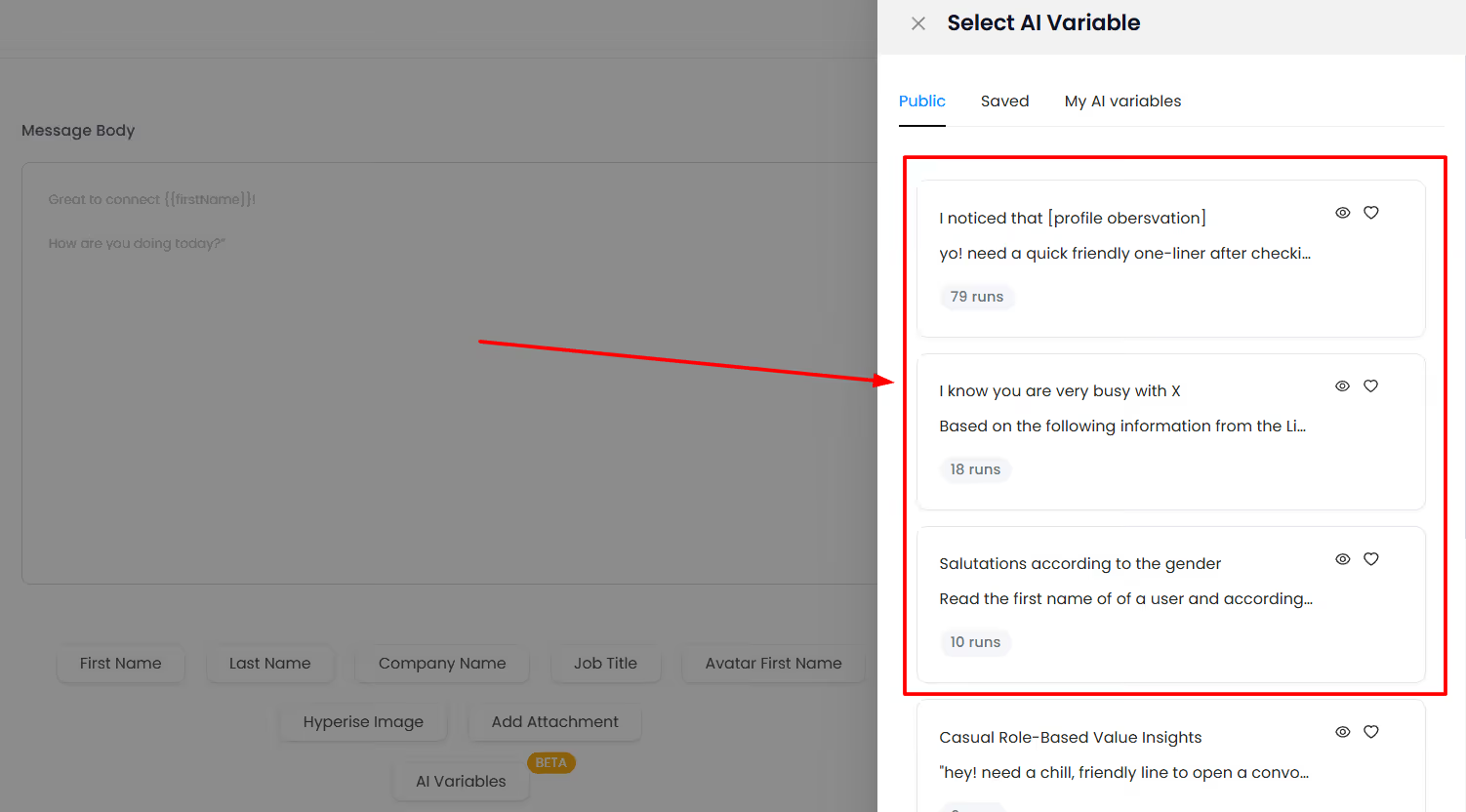
The AI handles the rest. It sends all your prospects' really catchy and personalized messages.
And it won't stop there - the AI keeps the conversation going until it successfully books a meeting for you.
Additionally, before any message goes out, AI Message Scoring rates its quality and flags weak copy - so you're not sending messages that won't get replies.
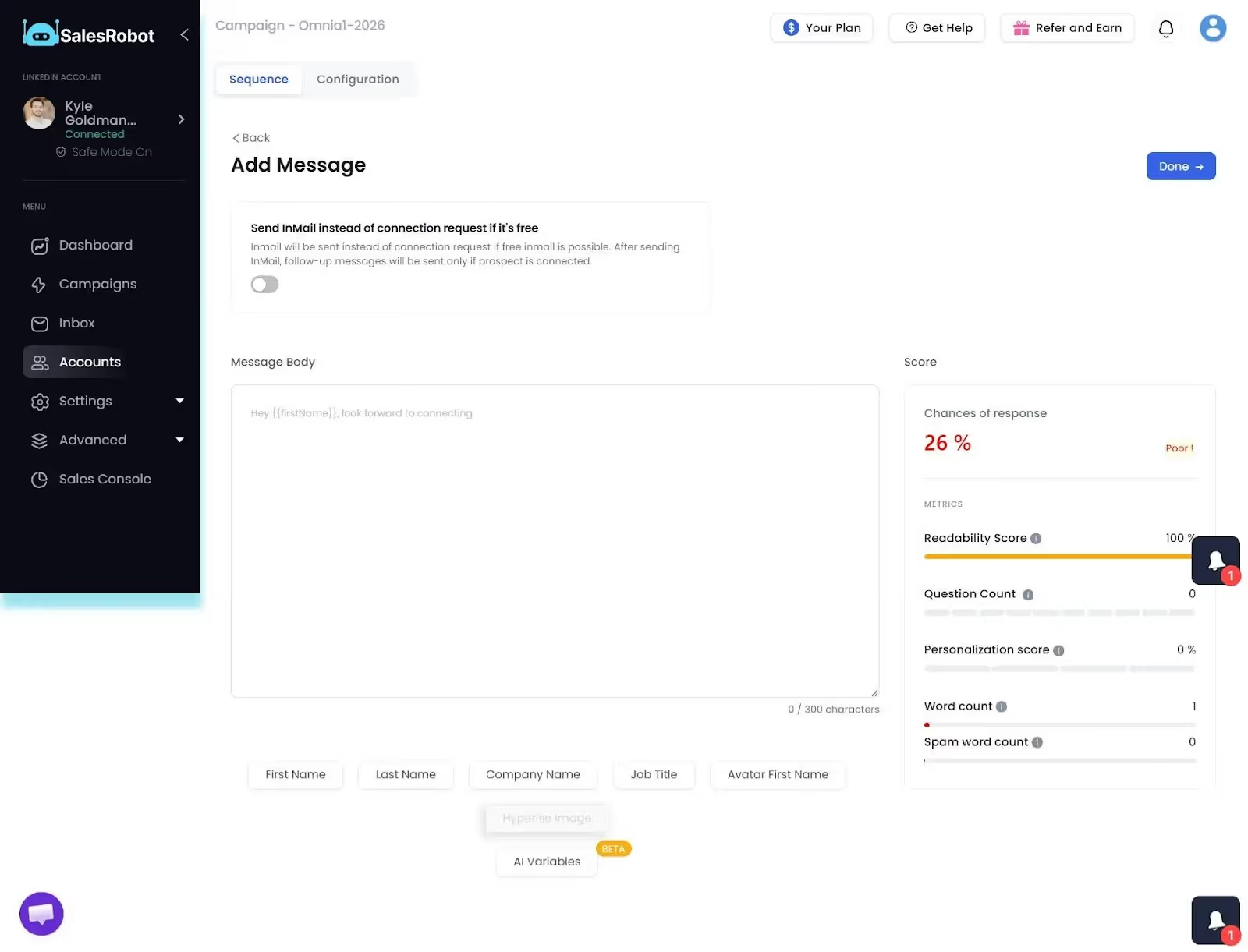
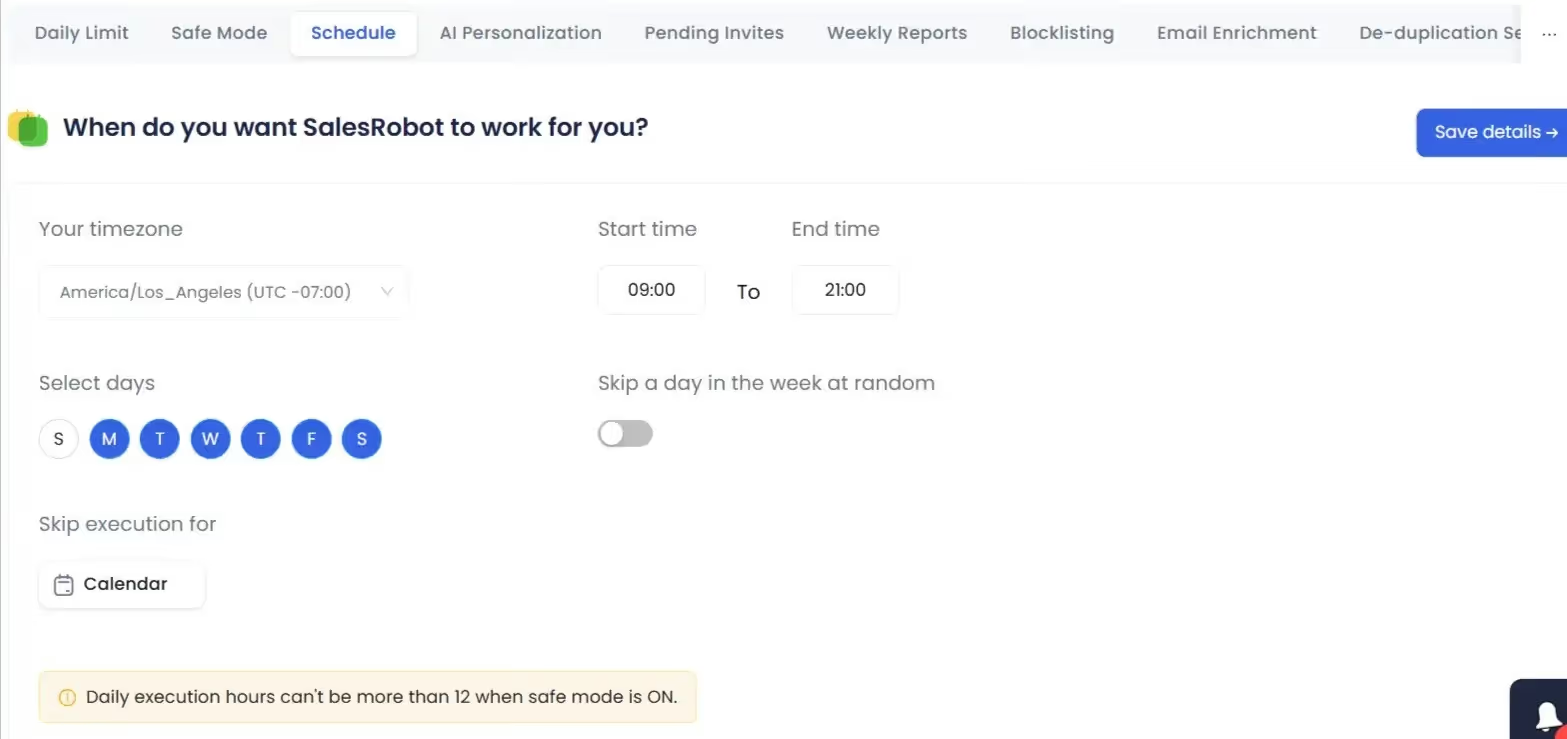
✅The fact that you can schedule SalesRobot's activity on LinkedIn to work only when your target audience is most active on LinkedIn.
No more timezone problems.
Here's how you can create a multi-channel campaign using SalesRobot:
- Sign up for the free trial, go to the Campaigns page, and click here
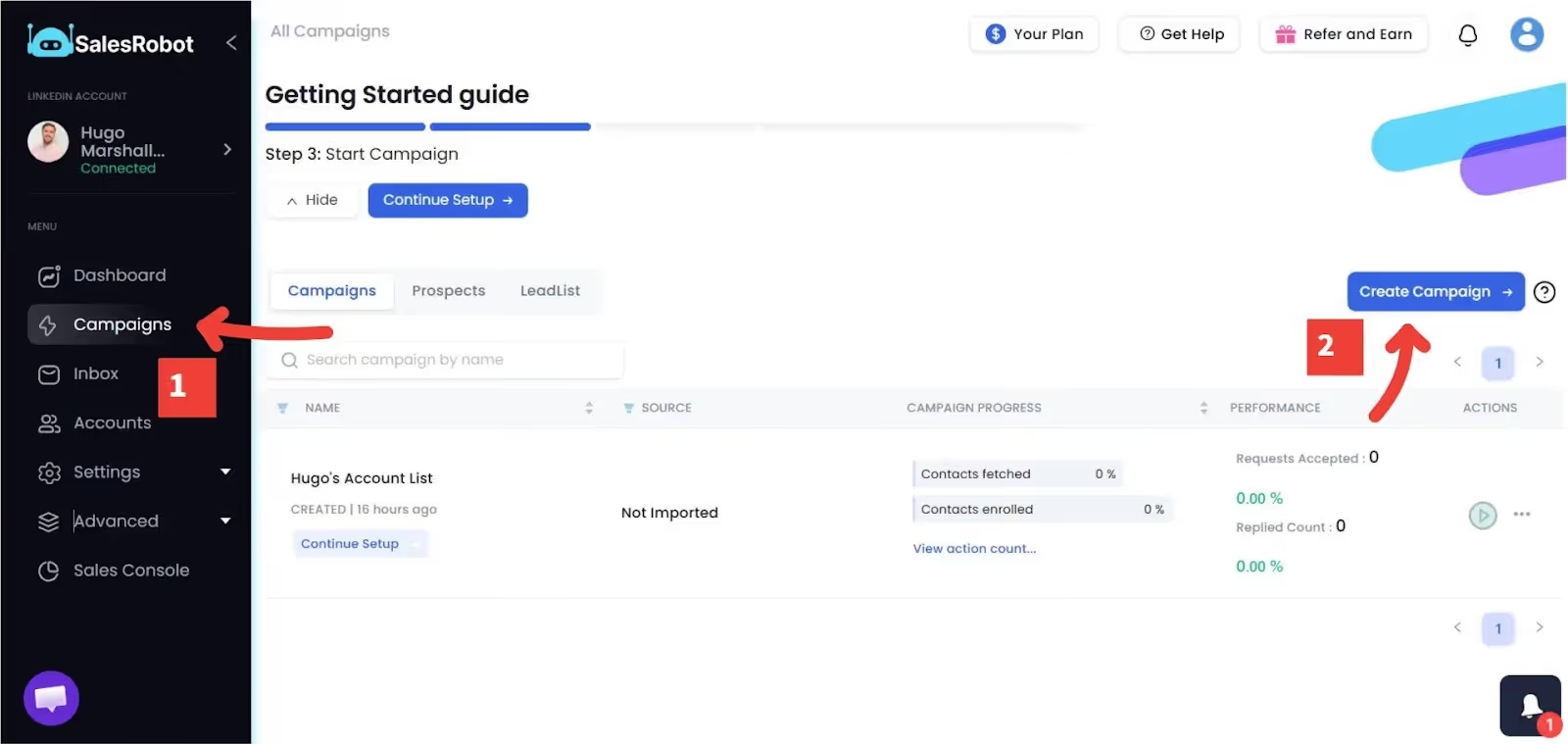
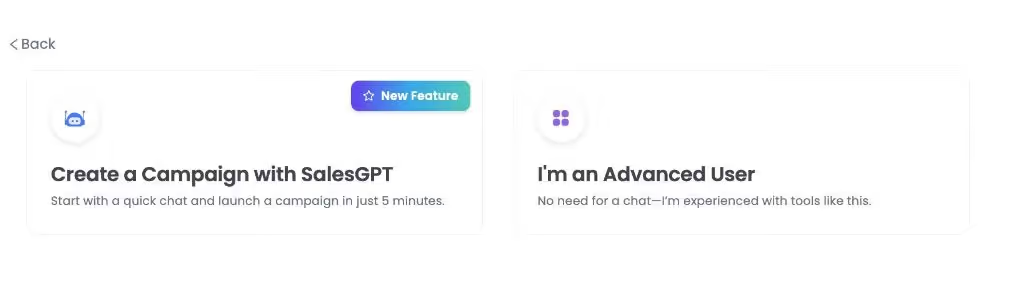
2. Now, you'll see 2 options: SalesGPT will ask you a bunch of questions and create a customizable campaign sequence, while the 'I'm an advanced user' lets you create one from scratch.
3. If you proceed with the 2nd option, you need to pick a name for your campaign, and add your prospect list (which I am assuming would be in a CSV format)
4. Configure your settings and set up a sequence now from the 'From Scratch' option.
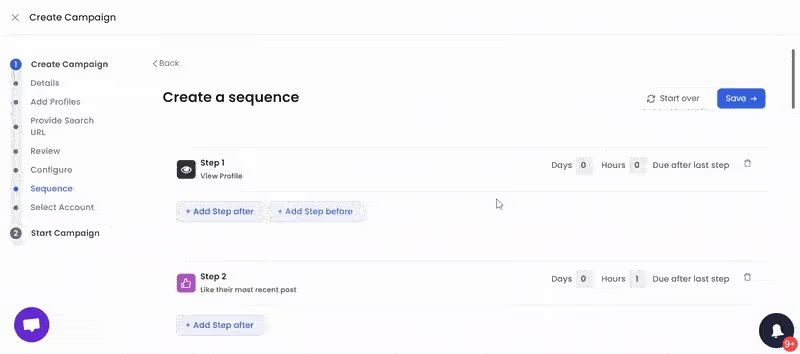
Once you're satisfied, hit 'Save' and you're good to go!
It was easy, right?
Okay, okay... enough about SalesRobot.
Let's talk about some common use cases of enriching email lists with LinkedIn URLs.
Why YOU SHOULD Find a LinkedIn Profile By Email
We've talked about the importance of LinkedIn earlier, so I'm not gonna go there.
But it's important that you understand why it is great for your business to enrich your email lists.
So here are 3 use cases of it:
↪️Multi-channel activities
↪️Lead enrichment
↪️CRM enrichment
1. Multi-Channel Activities
When you plan strategically and reach out to your prospects via multiple touchpoints, it increases your chances of response and (probably) business.
So, while relevancy is important to consider, you need to understand that relying on one channel won't give you crazy results.
And there are actual reasons why:
✅Your prospects might not be very active on one channel but more on another.
✅You build trust and show genuine interest when you reach out to them on multiple channels.
✅Your activities will seem less pushy.
2 messages on LinkedIn + 3 emails + subtle warm up on LinkedIn
VS.
5 emails back to back
Don't tell me you don't think the 1st option is better. Strategies combining email, LinkedIn, and phone increase response rates by 287% compared to using just one channel. :)
2. Lead Enrichment
Your inbound marketing is working great for you, but the data feels incomplete?
It's true, let's say you rolled out some newsletters or lead magnets and collected a bunch of email addresses.
But emails don't give you enough info about your leads.
This is where having LinkedIn info helps you out.
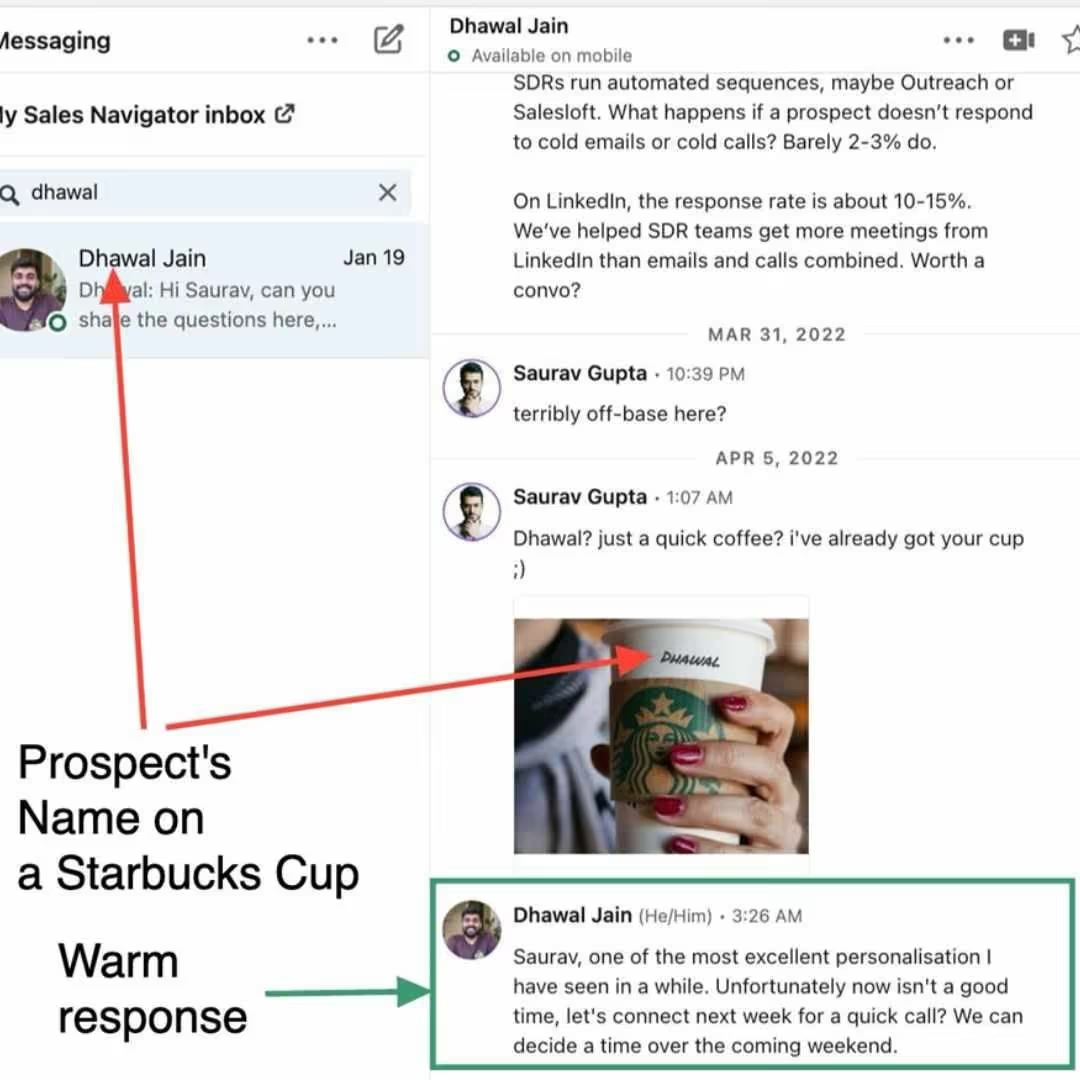
When you enrich those emails with LinkedIn data, you can personalize messages and follow-ups easily and build trust with your ICP.
With that kind of info, SalesRobot can help you write messages like this:
3. CRM Enrichment
A similar problem arises when your CRMs are full of emails but not much information about prospects.
Wouldn't it be better for your sales teams if they could just talk to more people based on some personalized info?
LinkedIn profiles can easily provide data about their education, work history, location, and so much more, so you know what to say.
(And also that you have enough info to talk to and don't get out of words; doesn't really leave a nice impression!)
This is why it is important you have LinkedIn URLs of your prospects, even if you're never going to do LinkedIn activities.
LinkedIn Profile Search Limits: What You Need to Know
If you plan to search for prospects by email and then look them up on LinkedIn, you're going to hit search limits faster than you'd expect.
LinkedIn has two separate limits to watch out for.
The Commercial Use Limit
This is the one that catches most people off guard. Free accounts can perform roughly 300 searches per month before LinkedIn decides you're using the platform for commercial activity - like prospecting or recruiting - and cuts you off.
Once you hit it, you'll see a notice telling you that your search is restricted. There's no way to see exactly how many searches you have left before the limit kicks in. LinkedIn won't show you a counter, and they won't lift the limit on request.
The limit resets at midnight PST on the 1st of each calendar month. So if you hit it on the 15th, you're waiting two weeks.
The Profile Search Limit
Even if you haven't hit the commercial use limit, there's a second cap: how many results you can browse within a single search.
Free accounts can scroll through up to 1,000 profiles per search - that's 100 pages of 10 results each.
Once you hit page 100, LinkedIn cuts off the results even if thousands more match your criteria. Sales Navigator raises this to 2,500 profiles per search (100 pages of 25 results).
What activities count toward your limit?
LinkedIn tracks several things, not just direct searches:
How to stay within limits
If you're using your email list to find LinkedIn profiles, prioritise the most relevant prospects first. Use narrow search filters - industry, location, company size - so each search works harder, and you waste fewer searches on irrelevant results.
And if you're doing this at scale, a tool like SalesRobot pulls prospect data without burning through your personal search allowance.
Profile View Visibility on LinkedIn: Who Sees What
This matters a lot when you're doing warm-up outreach - visiting profiles before sending a connection request. Here's exactly how it works.
Three viewing modes
LinkedIn gives you three options for how you appear when you view someone's profile. You can change this under Settings & Privacy > Visibility > Profile viewing options.
Public mode - Your name, headline, location, and industry are visible to whoever you view. This is the default for most accounts.
Semi-private mode - LinkedIn shows partial info, like "Marketing Manager at a Tech Company" or "Someone at Accenture," without revealing your name. Good if you want to stay partially visible without fully identifying yourself.
Private mode - You appear as "LinkedIn Member" with no other details. The person you viewed won't know who you are.
The trade-off for free accounts
If you're on a free account and switch to semi-private or private mode, you lose the ability to see who viewed your own profile.
LinkedIn makes you choose: either you're visible to others and can see your viewers, or you hide yourself and lose that data too.
Premium accounts don't have this trade-off. Premium users can browse in private mode and still see up to a 365-day history of who visited their profile. Free accounts only ever see the last 5 visitors.
What this means for outreach
If you're warming up a prospect by viewing their profile before reaching out, stay in public mode.
It signals genuine interest and often prompts them to check you out in return - which is a warm lead before you've even sent a message.
Use private mode only when researching competitors or doing sensitive research where you'd rather not leave a trail.
Here's where SalesRobot can come in handy
Manually visiting 100+ profiles every week in public mode is something most people do for a few days and then quietly abandon.
SalesRobot automates profile visits as part of a warm-up sequence - visiting prospects' profiles, following them, and engaging with their content before your connection request ever lands.
Because it spaces activity out gradually and adjusts based on your account age and network size, it stays within LinkedIn's limits and doesn't trigger any warnings.
By the time your connection request arrives, the prospect has already seen your name at least once. That familiarity alone lifts acceptance rates meaningfully.
LinkedIn Link Preview Not Working? Here's How to Fix It
If you share a blog post or webpage URL on LinkedIn and the preview looks wrong - old image, wrong title, or no image at all - the cause is almost always one of two things: missing Open Graph tags or stale cache.
Why it happens
When you paste a URL into a LinkedIn post, LinkedIn sends a crawler to your webpage to grab the title, description, URL, and image. It pulls this from Open Graph (OG) meta tags in your page's HTML.
If those tags are missing, misconfigured, or point to an image in the wrong format, LinkedIn either shows a broken preview, falls back to poor defaults, or skips the image entirely.
LinkedIn also caches this data for up to 7 days. So if you fix the tags on your website, LinkedIn will keep showing the old preview until the cache expires - unless you force a refresh.
Common issues and their fixes
No image showing → Check that your page has an og:image tag pointing to a valid image. The ideal size is 1200×627px, under 5MB, in JPG or PNG format.
Old title or image showing → LinkedIn is serving cached data. Use the Post Inspector (below) to force a refresh.
Preview shows a redirect URL → LinkedIn sometimes scrapes the redirect page instead of your final destination.
Always paste the final destination URL directly into your LinkedIn post, not a tracked or shortened link.
Image is cropped → Your image isn't at the 1.91:1 ratio. Resize it to 1200×627px before publishing.
The fix: LinkedIn Post Inspector
LinkedIn has a free official tool for this. Go to linkedin.com/post-inspector, paste your URL, and click Inspect. This forces LinkedIn to re-crawl your page and refresh the cached OG preview data.
If the Post Inspector shows the correct preview but old data still appears in your posts, add a unique query string to the end of your URL before sharing (for example, ?v=2).
LinkedIn treats it as a new URL, bypasses the cache entirely, and fetches fresh data.
Skip Broken Link Previews: Use SalesRobot’s Personalized Images Instead
If you're sending outreach that includes links - a case study, a landing page, a booking link - a broken preview undercuts the whole message.
SalesRobot lets you attach hyper-personalized images and GIFs to your outreach instead of relying on link previews entirely.
A personalized image made with Hyperise with the prospect's name, company logo, or LinkedIn profile photo embedded in it, sent in Email and LinkedIn campaigns, gets far more attention than a link thumbnail anyway, and it sidesteps the OG tag problem completely.
For link-based outreach, you can also preview exactly how each message will look before the campaign goes live, so nothing goes out looking broken.
Conclusion
There you are!
Now you're fully equipped to find LinkedIn profiles of your prospect list and use them efficiently.
While email is a professional way to reach out to people, LinkedIn is professional + more effective.
You also need to know that these methods will not work if your emails are inaccurate or inactive.
And LinkedIn + email + SalesRobot can turn your activities a full 180°.
I am not expecting you to take my word for it, try it out, and let me know if you have any questions.
We have a free 14-day commitment-free trial, so yes, no credit cards needed! :)
Hope this helps,
See ya!
Frequently Asked Questions
1. Will someone know if I view their LinkedIn profile without logging in?
No, if you're not logged into LinkedIn, your profile view won't be tracked or visible to the person whose profile you're viewing. However, you'll have limited access to their profile information.
2. What is the monthly limit for profile searches on LinkedIn?
LinkedIn has different search limits depending on your account type. Basic accounts have lower monthly limits of around 300 searches for commercial use and you can browse up to 1,000 profiles per search, while Premium and Sales Navigator accounts offer higher limits of 2,500 profiles per search. The exact numbers vary, and LinkedIn doesn't publish specific limits publicly, but staying within these LinkedIn profile search limits helps keep your account in good standing.
3. If I view someone's profile on LinkedIn and block them, will they know?
If you view someone's profile and then immediately block them, they may still see that you viewed their profile before the block took effect, depending on your privacy settings and timing.

Wow your leads by cloning yourself and sending personalized videos and voice notes to each lead on LinkedIn.
If you don't reply to leads within 5 mins, your chances of converting them fall by 50%. Our AI replies on your behalf instantly! (and yes, you can train it)

Don't shoot in the dark. Get detailed analytics on what's working
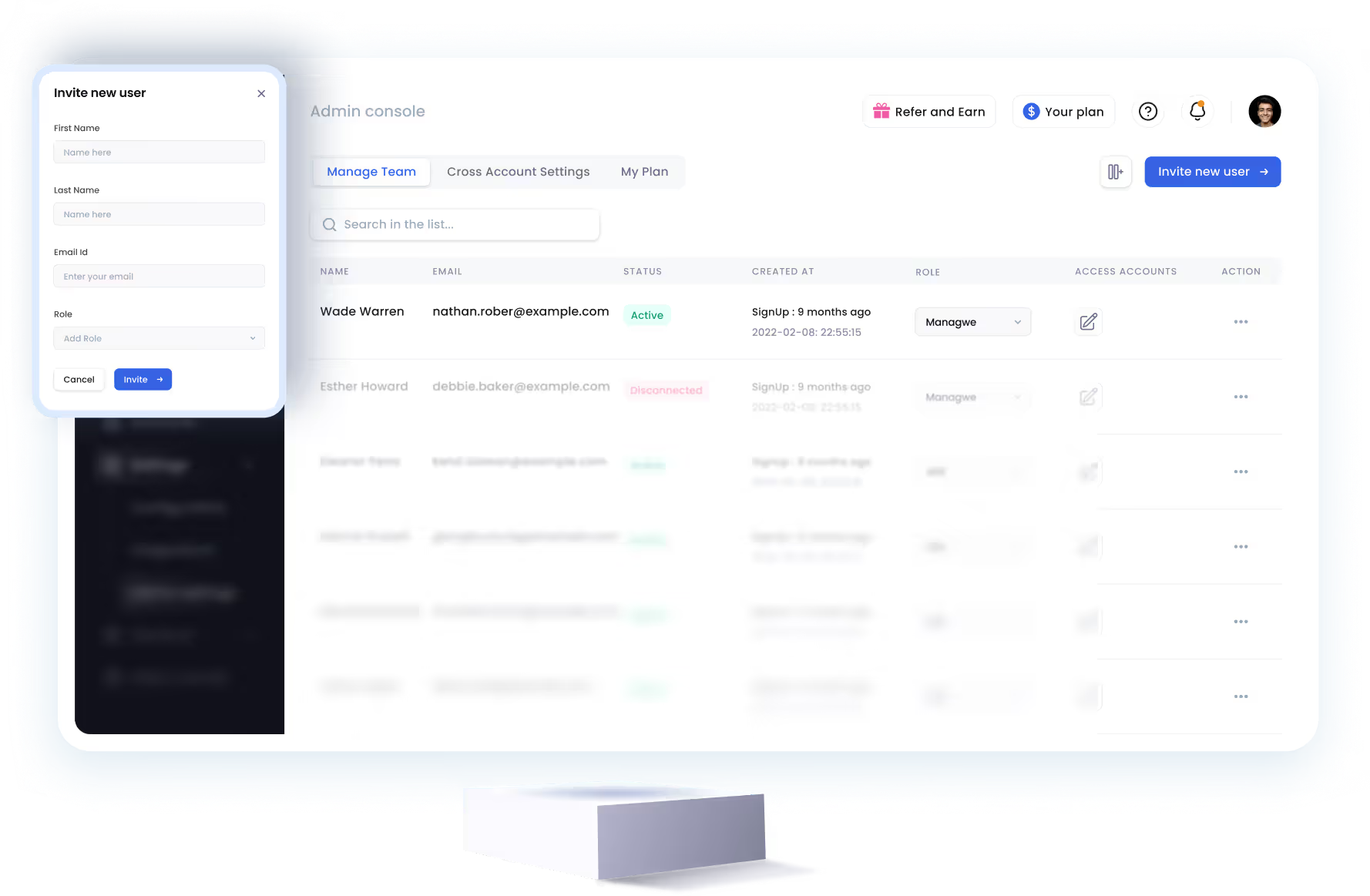
SalesRobot allows you to invite other team members, so that they can add their LinkedIn Account, run outreach campaigns and get amazing results just like you.
.avif)


Trusted by 4100+ innovative B2B sales teams and lead gen agencies

.avif)

.avif)




.avif)


Heading 1
Heading 2
Heading 3
Heading 4
Heading 5
Heading 6
Lorem ipsum dolor sit amet, consectetur adipiscing elit, sed do eiusmod tempor incididunt ut labore et dolore magna aliqua. Ut enim ad minim veniam, quis nostrud exercitation ullamco laboris nisi ut aliquip ex ea commodo consequat. Duis aute irure dolor in reprehenderit in voluptate velit esse cillum dolore eu fugiat nulla pariatur.
Block quote
Ordered list
- Item 1
- Item 2
- Item 3
Unordered list
- Item A
- Item B
- Item C
Bold text
Emphasis

Superscript
Subscript